
Divi Fashion Mega Menu Header Templates
This guide explains how to install and customize the Divi Fashion Mega Menu Header Templates.
- Before you start
- Download
- Import a header
- Customize the header
- Check before going live
- Help and support
Before you start
You need a WordPress website with Divi 5.13.0 or later installed, and access to Divi → Theme Builder. No additional plugin is required.
The product zip file contains the header templates JSON files. Each includes its custom CSS and JavaScript. You do not need to install separate code files or paste code elsewhere.
Back up first. Export your existing Theme Builder templates, including your current header, using Portability → Export. Start on a staging site where possible.

Download
You can download the purchased header templates ZIP file in a few different ways:
- Purchase receipt email. Click the download link in the Purchase Receipt email sent after your purchase. The link is valid for 48 hours.
- Your Divicio.us account. Log in and open Purchase History. Downloads remain available while your license is active: one year for an annual license, or lifetime access for a lifetime license.
- Products page. If you have an active Annual or Lifetime Membership, log in and visit the products page to download the templates.
Import a header
-
Unzip the downloaded file and choose one of the available JSON files in the /templates directory.

-
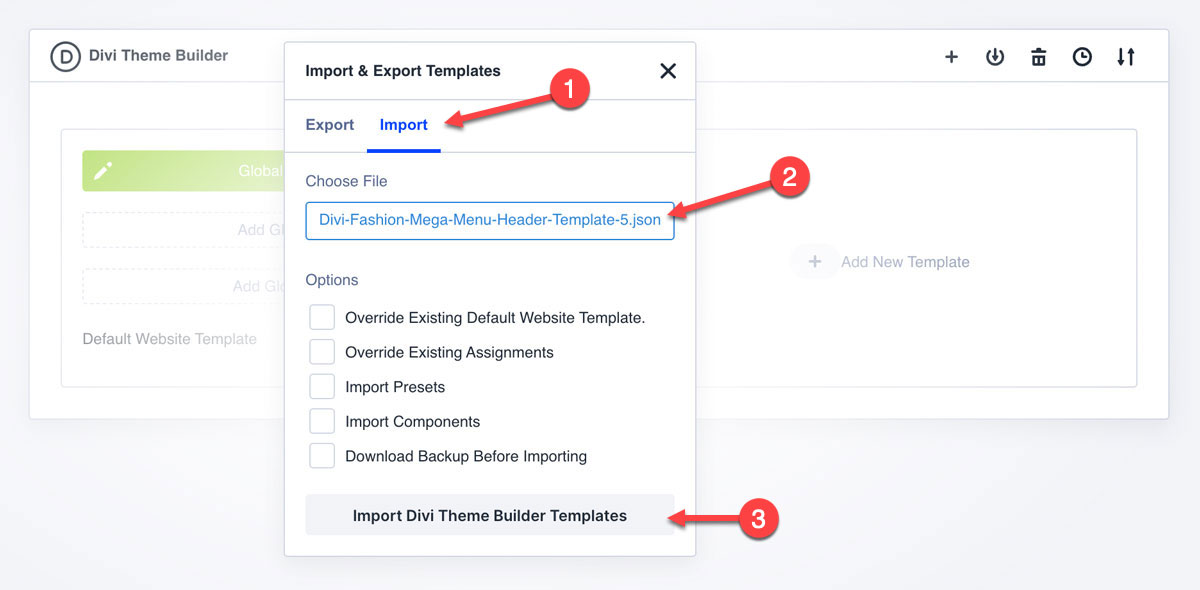
These header templates belong in the Theme Builder, not the page builder or Divi Library import screen. In you site admin area go to Divi → Theme Builder, click the Portability import and export icon, then open the Import tab, and choose your desired header template JSON file in the /templates folder. Leave the options to override the default website template and existing assignments unchecked, and click the Import Divi Theme Builder Templates button.
- Review the imported template and its assignments before saving. Initially assign the header to a test page only, keeping the live header in place.
- Click Save Changes in the Theme Builder.
Customize the header
Open the imported header in Divi Theme Builder and edit its native Divi 5 elements.
-
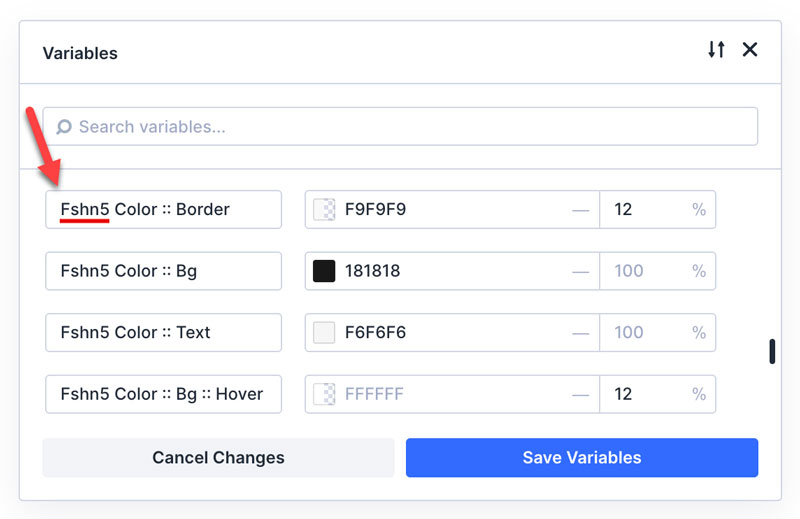
Branding. Replace the logo and demo images. Update the colors and font using the available variables. All template variables include "Fshn" in their names (eg.: the template #5's variable names start with "Fshn5"). Adjust text, spacing, borders and other design settings in the relevant elements settings to match your website.
- Desktop navigation. Update the Shop, Collections and Discover panels, including labels, category links, image links and buttons. Replace every demo destination.
- Mobile navigation. Update the mobile menu, including its links and images. Preview tablet and phone layouts. Enabling Divi’s Tablet Wide breakpoint is recommended for better responsiveness.
- Search and icons. If your selected header template includes category links in the search panel, update them to point to the relevant pages on your website. In the account and cart modules, set the links to your website’s account and cart pages. Update the mobile versions too, where applicable.
-
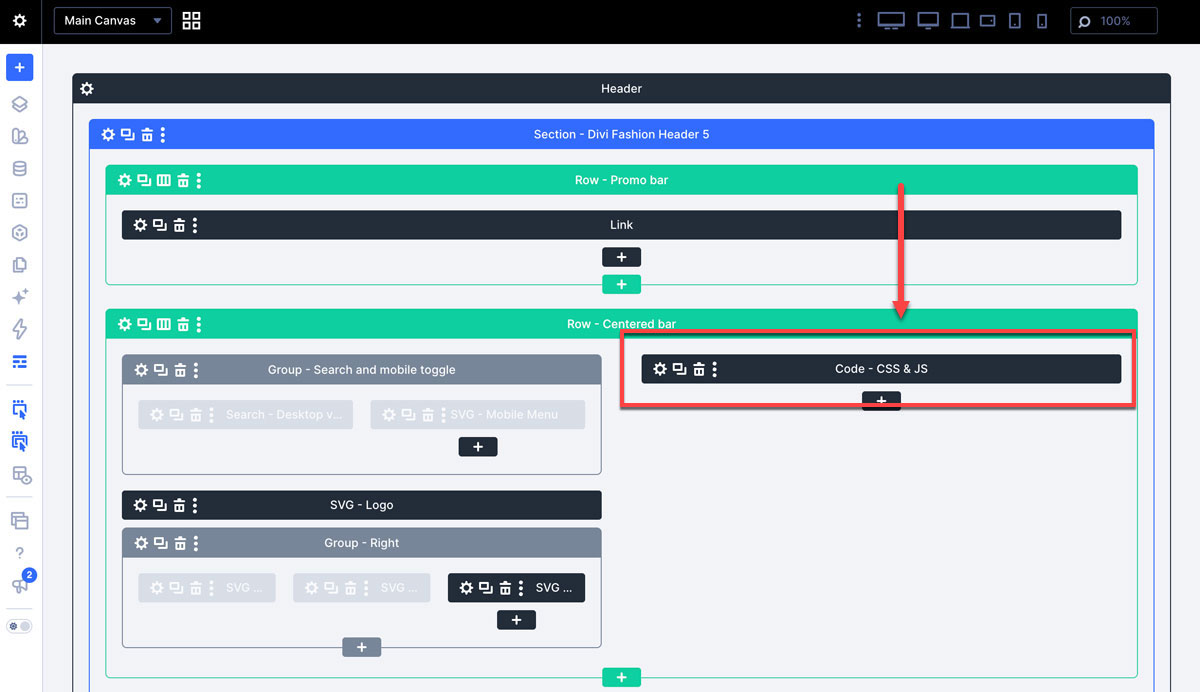
Included custom CSS & JS code. Preserve the embedded CSS and JavaScript, existing custom CSS classes, and menu structure unless you understand how they work together. Custom CSS is needed to fix minor layut issues, and the JS script is used to implement keyboard navigation.
Save the header in the builder, then save changes in the Theme Builder.
Check before going live
Test the actual front end, not only the builder preview.
- Desktop and mobile. Open and close every menu and the search panel. Check tablet and phone widths, images, text wrapping and all link destinations.
- Keyboard navigation. Use Tab and Shift+Tab keys to move through links and controls, Enter to follow a link, Enter or Space to toggle a dropdown, and Escape key to close it. Check that keyboard focus remains visible and returns to the dropdown toggle when you close the dropdown with Escape.
- Search and store links. Submit a search and review the results. Check that account and cart icons reach the correct pages on both desktop and mobile.
- Final assignment. When the checks pass, apply the header to the intended pages or globally. Review other Theme Builder templates for header overrides, then save and check the live pages.
Help and support
If the header does not appear, check its template assignment. If behavior changes after editing, compare with an untouched import on a test page and check that the included code is intact.
For additional help, submit a support request at https://divicio.us/support. Include the page URL, your Divi version, the header template used and a brief description of the issue.